
Kits and assemblies in Zoho Inventory: the short answer
Kits and assemblies in Zoho Inventory are the two types of composite item. A kit groups items you already stock and sells them together, with no physical build. An assembly is a product you physically build ahead of sale. Building one consumes the components and adds stock of the finished item.
The choice follows from what happens in your warehouse. If someone puts parts together before the product can ship, use an assembly. If you only pack separate items into one sale, use a kit. With a kit, each component keeps its own stock record.
Getting the choice wrong does not stop you selling. It does make your stock figures drift. An item you never build but set up as an assembly can show no available stock. A product you do build but set up as a kit never gets a stock record for the finished unit.
This guide covers four things:
- how each type moves stock
- a decision table
- the setup steps from Zoho's help pages
- a worked example and the known limits
It ends with the checks that keep component stock correct after each build. For the wider picture of stock and order handling, see our Zoho Inventory stock and orders page.
Composite items: the single item type behind kits and assemblies
A composite item in Zoho Inventory is a single commodity made up of two or more items and/or services. That is Zoho's own definition. Zoho Inventory then splits composite items into two types: Assemblies and Kits.
The Zoho Inventory help page on composite items defines both types:
- Assembly item: a group of items that are physically assembled and managed as a single finished product with inventory tracking. Assemblies were formerly called Bundles. You may still meet the old name in community threads.
- Kit item: a group of separate items packed and sold together as one unit, without physical assembly. You can set custom pricing for a kit.
Several rules apply to every composite item, whichever type you choose:
- A composite item is treated as Goods by default.
- You cannot create a service-type composite item.
- A composite item cannot consist only of service items.
- Whether you can use composite items at all depends on your subscription plan.
Assemblies now have their own module. Zoho states that you will find a dedicated Assemblies module under the Inventory tab, which gives better control over builds. Kits have no build step, so they have no equivalent module.
How kits and assemblies move stock differently
Kits and assemblies differ mainly in where Zoho records stock. That difference decides which figures your team sees when they check availability.
Assemblies: components go down, the finished good goes up
Creating an assembly consumes the required components. It also increases the stock quantity of the finished composite item. Zoho's help for its ERP product describes the same mechanism. Assembling reduces the components' stock level and creates a finished good with its own stock.
The finished assembly therefore has a quantity on hand of its own. That quantity rises only when you record a build.
Kits: components keep their own stock
For kits, Zoho tracks the stock of the associated components individually, not as a new item. Nothing gets built, so no new stock record is needed. Availability depends on the components themselves.
Why the difference matters in practice
One user in the Zoho community thread on kits described a problem with composite items that had not been bundled ahead of time. Their available quantity showed 0 or negative.
That is the expected result when an item works as an assembly. The finished good only has stock after a build. If your product is a grouping you never physically build, set it up as a kit so availability follows the components.
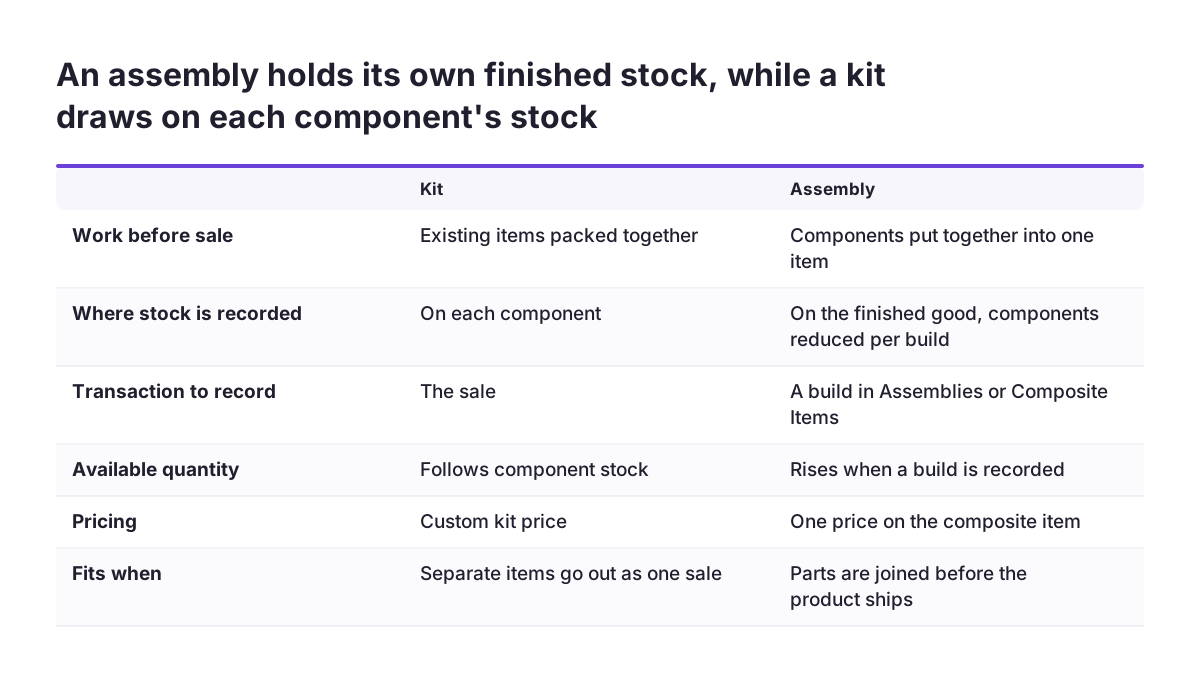
Choosing between a kit and an assembly: a decision table
Choose an assembly when work happens before the sale, and a kit when it does not. The table below sets out the differences that Zoho's help pages document.
| Question | Kit | Assembly |
|---|---|---|
| Is the product physically built before sale? | No, existing items are grouped for sale | Yes, components are put together into one item |
| Where is stock recorded? | On each component individually | On the finished good, with components reduced at each build |
| Is there a build step to record? | No | Yes, in the Assemblies module or from the composite item |
| Can services be included? | Composite items cannot be service-only | Yes, but at least one inventory item is required |
| What if demand exceeds stock on hand? | Depends on component stock | The Assemble Item option in a sales order or invoice builds the missing quantity |
| Zoho's own example | A gift kit sold as a single item | A customised electric kettle built from components plus labour |
Two quick tests settle most cases.
- Ask whether a person in your warehouse spends time putting the product together. If so, it is an assembly.
- Ask whether you need a stock count of the finished product, separate from its parts. If not, a kit is usually the cleaner record.
The two types also combine. Zoho's ERP help states that you can add an existing composite item as part of another composite item. A kit can therefore contain an assembled product.
Setting up a composite item in Zoho Inventory, step by step
Setting up a composite item takes four decisions: turn the feature on, choose kit or assembly, add the components, and settle tracking before the first transaction. Zoho's help for its ERP product shows where the feature is switched on. Go to Settings, then Module Settings, then Items, and check Enable Composite Items.
Then create the composite item and work through these steps in order:
- Choose the type. Pick Assembly or Kit, using the decision table in this guide.
- Add the components. Add at least two items and/or services. Include at least one inventory item, because service-only composites are not allowed.
- Decide on tracking. With advance inventory tracking enabled, you can track the composite item by serial number or by batches. Each item uses one method only, not both.
- Decide on bin locations. Choose before you record any sales. You cannot disable the Track Bin Location option once transactions exist for the item.
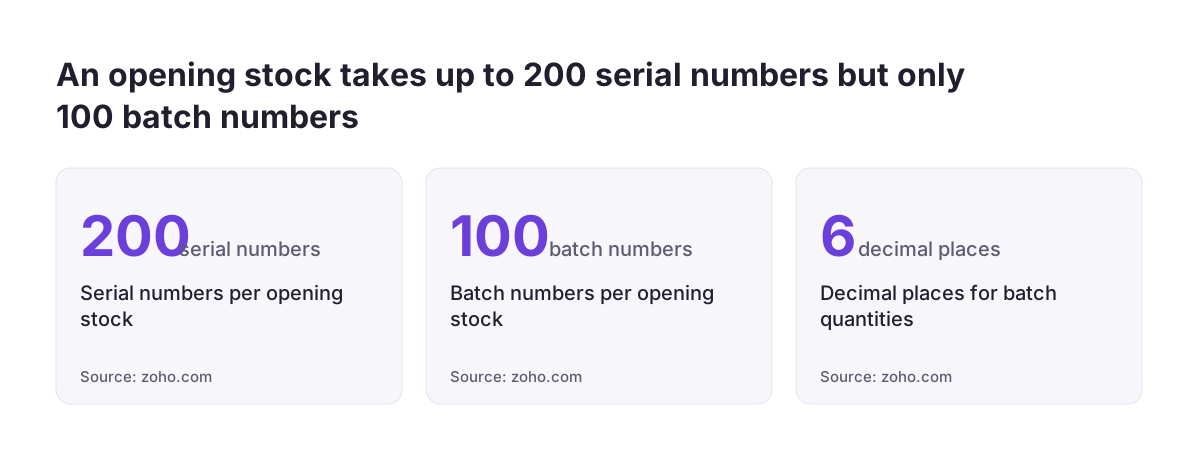
- Enter opening stock. Opening stock is the quantity on hand before you start tracking the item. You can enter up to 200 serial numbers or up to 100 batch numbers for an opening stock.
- Set a reorder point. Zoho then sends an in-app notification to help you monitor stock levels.
Two further settings affect day-to-day work. Sales returns are possible only for items set as returnable. You can upload up to 15 images per item, at 5 MB each, which helps pickers recognise the finished product.
Recording an assembly build: consuming components and adding finished stock
An assembly build is the transaction that turns component stock into finished stock. Zoho defines assemblies as the process of combining components, such as inventory items and services, to produce one item. You can start a build in two places: the Composite Items module or the Assemblies module.
The Zoho Inventory help page on assemblies describes the steps:
- Choose the composite item and the quantity to build.
- Check the components. Zoho fills them in automatically from the composite item. You can remove items, add items or change quantities for this build.
- Enter serial or batch numbers for the assembled quantity, if tracking is enabled on the composite item.
- Click Assemble to complete the build, or Save As Draft to finish it later.
A draft does not move stock. Use drafts when components are still arriving or the build is not yet physically done.
Building on demand from a sales order
Demand can exceed the finished stock you hold. In that case, the Assemble Item option inside a sales order or invoice generates the required composite items on the fly. This suits products you build to order without keeping a finished buffer.
Correcting a build
Deleting an assembly restores the stock level of its components automatically. That makes deletion the clean way to undo a build recorded by mistake. A manual stock adjustment is the worse option.
Worked example: an assembled kettle sold alone and in a gift kit
Zoho's own example uses both types in one business, and it shows the difference clearly. In Zoho's ERP help on kit and assembly items, a seller named Sam assembles a customised electric kettle. Sam then sells it inside a gift kit.
Step one: the kettle as an assembly
Sam builds the kettle from its components, plus the labour cost of assembling it. In Zoho's terms, the kettle is an assembly item:
- Its components are inventory items.
- The labour is a service item in the same assembly. That is allowed because at least one inventory item is present.
- Each build reduces component stock and adds finished kettles to stock.
When Sam records a build of a batch of kettles, the kettle components drop by the quantities used. The kettle's own stock rises by the batch size. If a customer orders more kettles than are in stock, the Assemble Item option on the sales order builds the shortfall.
Step two: the gift kit as a kit
Sam then creates a gift kit. It contains the assembled kettle and complementary items: gift wraps, greeting cards and discount coupons. Sam sells the gift kit as a single item at its own price.
Nothing is built for the gift kit, so it is a kit item. Selling one draws on the kettle stock and on the gift wrap, card and coupon stock, each tracked individually. The kit holds an existing composite item, which Zoho allows.
The split mirrors the physical work. Labour happens once, on the kettle. Packing happens at sale, on the kit.
Known limits that affect kit pricing, picking and build paperwork
Users have reported several limits in the Zoho community, and you should plan around them before go-live. These are user reports and feature requests, not statements in Zoho's documentation. Check whether they still apply in your edition.
Price does not follow component prices
One user explained that a composite item has a single price. A "copy from total" option fills that price from the components. The user noted that this step is manual and does not update when component prices change. If you set kit prices from component prices, add a price review to your routine.
Transactions do not list the components
A user in the community thread on showing composite components reported a gap. Selecting a composite item in a transaction did not show the individual items that make it up. Their team had to track components outside the system to pick, pack and ship. The same user noted that an option adds item details to the description, but called it a manual task.
Assembly order template shows the name only
A community request asks for the finished item's SKU on the Assembly Order template. According to the requester, only the item name can currently be included. An SKU (Stock Keeping Unit) is a unique identifier for an item that can also hold its barcode. Build sheets for the workshop may need the name to be unambiguous on its own.
Keeping component stock and cost correct after each build
Component stock stays correct when every physical build has exactly one assembly record, and every mistake is undone by deleting that record. Zoho restores component stock automatically when you delete an assembly. A manual adjustment does not keep that link.
At Svennis, we record one test build of a single unit before any client goes live with assemblies. We compare component and finished stock before and after, and only then import historical builds. That one check shows whether the component quantities on the composite item match what the workshop actually uses.
Use these checks after each build, or at least each week:
- Drafts: review assemblies saved as drafts. A finished physical build left as a draft understates finished stock.
- Edited components: look at builds where someone changed the auto-filled components. A recurring change usually means the composite item itself needs updating.
- Labour as a service: include labour as a service line, as in Zoho's kettle example. The cost of work then sits in the assembly next to the parts.
- Retired products: deleting or deactivating a composite item leaves its components active. Check that you are not left with parts you no longer need.
The finished figures matter beyond the warehouse. If you report stock and margin, our Zoho Analytics implementation page covers reporting across apps. Accounting setup is covered on our Zoho Books setup page.
What kits and assemblies mean for a company trading in the EU
For an EU company, kits and assemblies work the same way as anywhere else. The points that need care are imports, tax settings and traceability. Zoho's composite item documentation contains no EU-specific rules, so treat these as setup checks, not legal requirements.
Imports with accented names and European dates
You can import assemblies into Zoho Inventory from CSV or TSV files. The default character encoding is UTF-8. That keeps item names with accented letters intact, provided your file is saved as UTF-8.
Zoho's ERP guide to importing assemblies adds some useful details. You can set the date format per field or as one default format. That matters when your files use day-first dates. Zoho maps similar fields automatically, and you can save the mapping for later imports. Before the import runs, Zoho shows an overview of skipped records and unmapped fields.
Tax preferences
Zoho's ERP help lists tax preference options that include Non-GST Supply. That option belongs to a market outside the EU. Set the tax preference of each composite item according to your own organisation's tax setup. Do not copy examples from another country's help pages.
Traceability
Serial or batch tracking on an assembly lets you record which numbers went into a finished unit. Decide on it before go-live, because each item allows one method only.
Exports of assembly data can be protected with a password. That is worth using when files leave your organisation.
Next steps: setting up kits and assemblies in your Zoho Inventory
Start by listing the products you sell as groups, and mark each one "built" or "packed". The built products become assemblies and the packed ones become kits. Then work through these steps:
- Confirm that your Zoho Inventory plan includes composite items.
- Enable composite items in the item settings.
- Decide serial or batch tracking and bin locations before the first transaction. Bin location tracking cannot be switched off once you have recorded transactions.
- Create one assembly and one kit. Record a single test build and a test sale, then check the component stock against your expectation.
- Agree who reviews draft assemblies and kit prices, and how often.
- Import historical assemblies only after the test balances, using a UTF-8 file and a saved field mapping.
If your team picks kits from paper lists today, test how the components appear on your sales documents before go-live. The community reports in this guide show that this is where gaps tend to appear.
For the wider setup of items, warehouses and orders, our Zoho Inventory page sets out how we approach a full implementation. It covers the parts this guide leaves out.
Sources
- Zoho Inventory help: Assemblies
- Zoho Inventory help: Composite Items
- Zoho ERP FAQ: Kit and Assembly Items
- Zoho ERP help: Composite Items
- Zoho ERP FAQ: Import Assemblies
- Zoho Community: creating kits without bundling
- Zoho Community: showing composite item components in transactions
- Zoho Community: SKU on the Assembly Order template