
Customer hierarchy for group companies in Zoho Books, in short
To set up a customer hierarchy for group companies in Zoho Books, you record each subsidiary as its own customer and assign the group's parent company as its parent customer. Each legal entity keeps its own invoices. The parent's Details page, single payments, shared credits and two reports then show the group as one relationship.
Customer Hierarchy is a Zoho Books feature that lets you organise customers into levels, such as parent and child customers or sub-customers. A sub-customer, or child customer, is any customer placed under a parent. The parent is usually the holding company or head office that negotiates and often pays for the group.
This guide walks you through the full setup:
- what the feature does and what it deliberately leaves alone
- how to switch it on and import an existing group structure
- how credit control and reporting work at group level
- where Zoho CRM and Zoho Analytics should take over
The facts on the feature come from Zoho's own help page. Points marked as community reports come from users on the Zoho forums, not from Zoho.
Subsidiaries stay separate customers while the parent groups them
In a Zoho Books customer hierarchy, every subsidiary remains a separate customer record. It keeps its own name, address, invoices and balance. The parent customer does not replace the subsidiaries. It sits above them and gathers their figures into a group view.
This matters because your customer's group is made of separate legal entities. The company that orders and receives the goods is normally the one your invoice must name. Customer Hierarchy lets you keep that separation and still treat the group as one relationship for payments, credits and reporting.
Structure rules from the Zoho Books help page
- You can add up to five levels of customers in the hierarchy.
- You can assign a parent customer only when the Customer Type is set to Business.
- You can merge sub-customers only when they belong to the same parent customer.
Five levels cover most real groups. A typical structure might run from a holding company to regional companies, then to country companies, then to sites. Individual customers sit outside the hierarchy, because the parent option does not appear for them. The merge rule protects you from combining unrelated entities by accident. Even so, you should merge only when two records are truly the same legal entity.
Switching on Customer Hierarchy and assigning a parent customer
Customer Hierarchy is a feature you switch on in Zoho Books before any parent can be assigned. Zoho's Customer Hierarchy help page describes the setup and the settings named below.
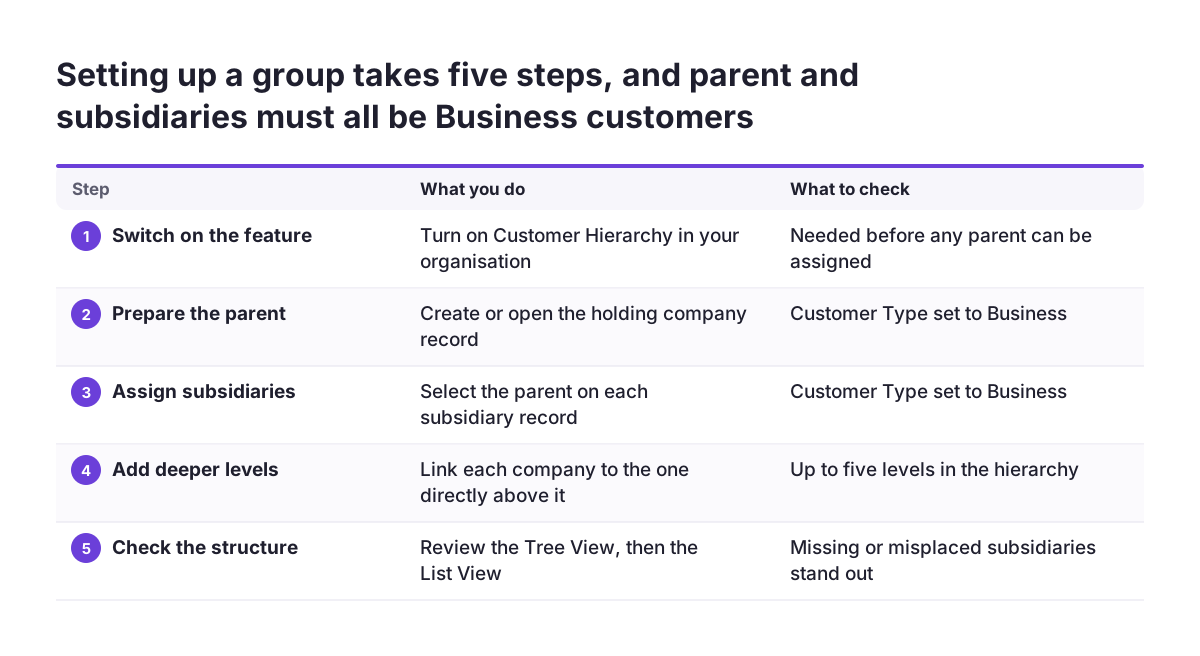
Set up the structure in this order:
- Switch on Customer Hierarchy in your Zoho Books organisation.
- Create or open the parent customer and confirm its Customer Type is Business.
- Open each subsidiary, confirm its Customer Type is Business, and select the parent customer.
- Repeat for deeper levels, assigning each lower company to the company directly above it.
- Check the result in the Tree View, then in the List View.
The Tree View shows the group as a branching structure, so a missing or misplaced subsidiary stands out quickly. The List View suits day-to-day searching and filtering.
Plan the structure before you build it. Turning the feature off later takes work. Before you disable Customer Hierarchy, no customer may be associated with a parent customer. That means removing every parent link one by one or by re-import. A short agreed group chart from your finance team saves that clean-up.
Importing a group structure with the Parent Customer column
Importing is the fastest way to build a customer hierarchy when a group has many entities. Zoho Books accepts customers in an import file and adds them to a hierarchy, but only if the file includes a Parent Customer column.
The import has one firm rule. The parent customer named for each record must either be in the same import file or already exist in Zoho Books. If the parent is missing, the link cannot be made. The safest file therefore lists parents before their subsidiaries, or you import the parents in a first file and the subsidiaries in a second.
Preparing the file
- Use exactly the same spelling for a parent in the Parent Customer column as in its own customer record.
- Set the Customer Type to Business for every company in the file.
- Leave the Parent Customer column empty for the top company of each group.
- Check existing customers first, so the import does not create a second record for a company you already invoice.
At Svennis, we import the parent companies first and the subsidiaries second, with the Parent Customer column filled in. We then compare the Tree View against the customer's own group chart before anyone sends an invoice. That check catches the usual mistakes early: a subsidiary under the wrong parent, or a company imported twice under slightly different names.
Worked example: a customer group with a holding and three subsidiaries
Take a fictional customer, Alba Group, to see how a customer hierarchy works in Zoho Books from setup to payment. Alba Holding negotiates contracts and pays most bills. Alba Logistics and Alba Retail buy from you directly. Alba Retail North is a regional company under Alba Retail.
Setup
You create Alba Holding as a Business customer with no parent. Your import file then lists Alba Logistics and Alba Retail with Alba Holding in the Parent Customer column. Alba Retail North lists Alba Retail as its parent, which is allowed because Alba Retail is in the same file. The Tree View now shows three levels.
Invoicing
Each company receives invoices in its own name. Alba Logistics is invoiced for its deliveries and Alba Retail North for its own orders. Nothing is billed to Alba Holding unless Alba Holding itself buys.
Payment and credits
Alba Holding pays one bank transfer covering open invoices across the group. You record it as a single payment that applies to the parent and its sub-customers. Alba Holding also has an unused credit from an earlier return, and you apply it to an Alba Retail invoice.
This mirrors a scenario a community user described: one customer with three locations, where the main billing account receives all invoices and pays them in one consolidated payment.
Group credit control: Consolidated Overview, shared credits and single payments
Credit control for a group customer starts on the parent customer's Details page in Zoho Books. With Customer Hierarchy switched on, that page displays a Consolidated Overview. The Consolidated Overview is a view showing the total outstanding receivables and unused credits for the parent and all its sub-customers.
The Consolidated Overview answers the question your credit controller asks first: how much does this group owe us in total? Without it, someone adds up separate balances by hand. Mistakes creep in, and a group that looks safe entity by entity can turn out to be over its limit as a whole.
Two actions that work across the group
- Applying parent credits: any unused credits from the parent customer can be applied to its sub-customers' transactions.
- Recording one payment: you can record a single payment that applies to both the parent and its sub-customers.
Both actions match how groups actually pay. A head office often settles invoices for several subsidiaries in one transfer, and you no longer have to split that transfer into artificial payments per entity. Your chasing can follow the same logic. You review the group total on the parent, then decide whether to call the head office or the individual subsidiary that is late.
Group reporting in Zoho Books: Sales by Customer and Customer Balances Summary
Zoho Books shows two reports at the hierarchical level once a customer hierarchy is in place: Sales by Customer and Customer Balances Summary. These are the reports that roll subsidiaries up to the group inside Books itself.
Sales by Customer tells you how much you sold to the group and to each company within it. Customer Balances Summary tells you what each part of the group owes. Together they cover the two questions account managers and finance ask most often about a group customer: how big is the relationship, and how healthy is it.
The list is short, and you should plan around it. The help page names these two reports as the ones available at hierarchical level. If your managers need margin by group, group revenue over several years, or a view combining sales pipeline and invoicing, these two reports will not be enough. That is the point where Zoho Analytics comes in, as a later section of this guide explains.
Before relying on the reports, test them on one group you know well. Compare the hierarchical totals with the figures your finance team already trusts. If they differ, the cause is usually a subsidiary that was never linked to its parent.
Where Zoho CRM fits next to the Zoho Books customer hierarchy
Zoho CRM is the place for the sales relationship with a group customer, while Zoho Books holds the billing structure. The two need deliberate alignment, because the parent links do not necessarily travel between them.
A community user migrating to Zoho Books described this gap. In their Zoho CRM, accounts were set up as parent accounts with member or child accounts. CRM accounts and their contacts synced to Books as contacts and contact persons. Yet Books, they reported, brought the parent and child accounts over as individual accounts.
If you sync CRM to Books, check the hierarchy in Books after the first sync and assign parents there where needed. Our guide to setting up the Zoho CRM and Zoho Books integration covers the sync itself.
Two further limits users report
- One forum user reports that Books lets you assign only one user to each customer, so another rep needs an ownership change to see the profile.
- Another reports that a customer with many stores, each set up as its own account, could log into the customer portal for only one store.
Both reports point the same way. When several people manage one group, or the customer wants a single login across entities, plan that in CRM or with your partner rather than expecting the Books hierarchy to solve it.
Zoho Analytics for group reporting beyond Zoho Books
Zoho Analytics is the tool to bring in when group reporting must go beyond the two hierarchical reports in Zoho Books. Typical triggers are trends over several years, margin by group, and revenue that combines CRM deals with Books invoices.
Zoho Analytics also helps when your own business invoices from several companies. Zoho Books lets you run several organisations, as a community user evaluating CRM with Books noted. In that user's case, invoicing always had to come from the entity that shipped the goods. Zoho's help page describes the customer hierarchy within a Books organisation, not a link across organisations. A customer group that buys from two of your companies therefore appears as two separate structures, one in each organisation.
A single group view across organisations needs a reporting layer above Books. Our page on Zoho Analytics implementation describes how such a layer is set up.
Keep the naming identical in every organisation. If the parent is called Alba Holding in one Books organisation and Alba Holding Ltd in another, any combined report has to match them by hand. One agreed list of group names saves that work later.
Which tool handles which group-customer requirement
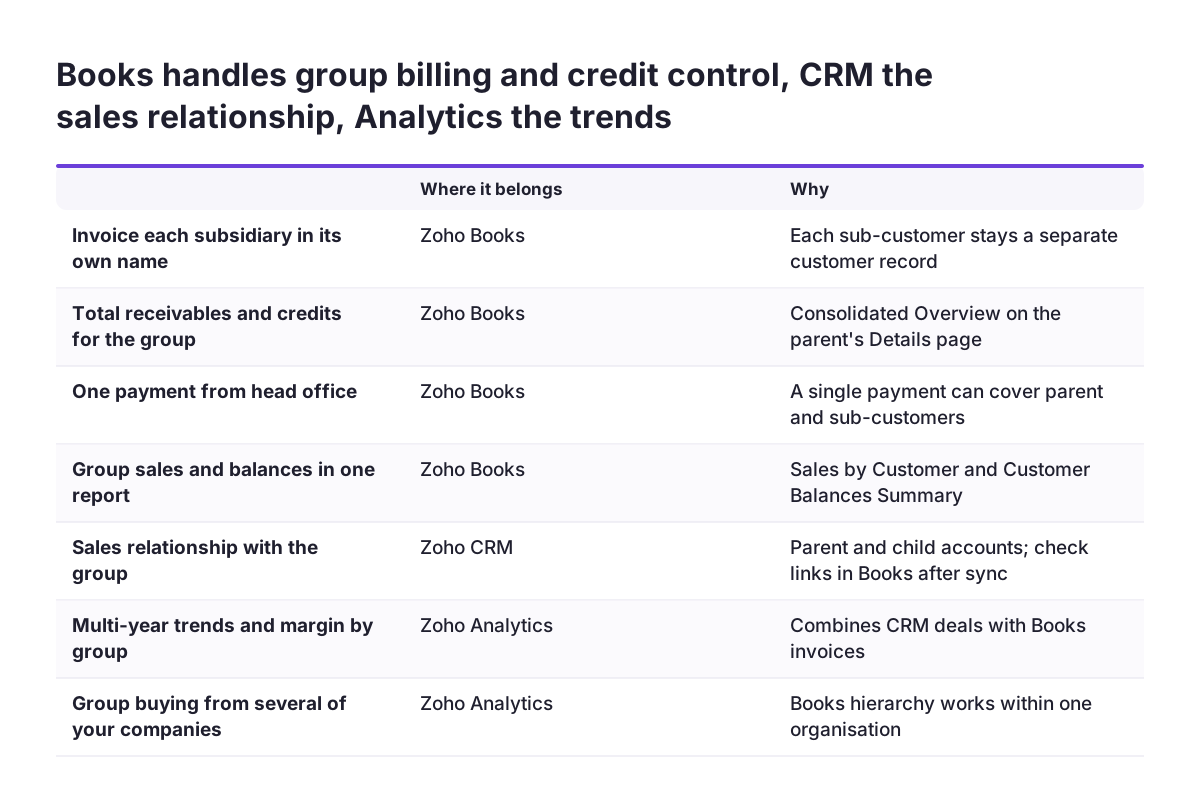
Zoho Books Customer Hierarchy covers billing, payments and credit control for a group customer. Zoho CRM and Zoho Analytics cover what lies outside it. The table below maps common requirements to the tool that should carry them, based on the sources in this guide.
| Requirement | Where it belongs | Why |
|---|---|---|
| Invoice each subsidiary in its own name | Zoho Books | Each sub-customer stays a separate customer record |
| See total receivables and credits for the group | Zoho Books | Consolidated Overview on the parent's Details page |
| Record one payment from head office | Zoho Books | A single payment can cover parent and sub-customers |
| Group sales and balances in one report | Zoho Books | Sales by Customer and Customer Balances Summary work at hierarchical level |
| Several salespeople working one group | Zoho CRM | Forum users report one user per customer in Books |
| Parent and child accounts in the sales process | Zoho CRM, then check Books | A user reported parent links arriving in Books as individual accounts |
| Group view across several of your own companies | Zoho Analytics | The hierarchy is described within one Books organisation |
Start with Books alone if your needs stop at the first four rows. Add the other tools only for the requirements you actually have.
What a customer hierarchy means for EU companies with group customers
For a company in the European Union, a customer hierarchy in Zoho Books helps because group customers usually span several legal entities, often in several member states. A customer's French, German and Dutch subsidiaries are each separate buyers. The hierarchy keeps them separate on invoices and joins them for credit control.
The hierarchy changes nothing about who an invoice is addressed to or what it must show. Invoice content and tax treatment depend on the member states involved and on the transaction. Your accountant should confirm them for each subsidiary relationship, and the hierarchy should never be a reason to bill the parent for a subsidiary's purchase.
Points to agree internally
- Which entity is the parent for each customer group, using the customer's own group structure.
- Whether the head office pays for subsidiaries, so single payments are expected rather than queried.
- Who may see group-wide balances and contacts, since GDPR still applies to the contact persons stored on every record.
Groups also restructure. Subsidiaries are sold, merged or renamed. Review your hierarchy whenever a group customer announces a change, and move or merge records only after finance confirms the new legal structure.
Next steps for setting up your customer hierarchy in Zoho Books
The practical next step is to pick one group customer and build its customer hierarchy in Zoho Books end to end, before rolling it out to every group.
- List your group customers and draw each structure, staying within five levels.
- Set Customer Type to Business for every company in those groups.
- Switch on Customer Hierarchy and build one group, by hand or by import with a Parent Customer column.
- Check the Tree View against the customer's group chart.
- Test the Consolidated Overview, a single payment and the two hierarchical reports on that group.
- Decide from the table above whether you also need Zoho CRM or Zoho Analytics for that customer.
Run the pilot group through one full billing cycle before importing the rest. If you use Zoho CRM, check after the next sync that the parent links in Books are still in place.
If you want help planning the structure, or Zoho Books itself is still being set up, our Zoho Books setup service covers organisations, customers and the import.
Sources
- Zoho Books Help: Customer Hierarchy
- Zoho Community: #5 CRM/QB to Books Migration, Parent / Child Customer Accounts
- Zoho Community: Customer Portal for Multi-Store Accounts
- Zoho Community: Connecting one Zoho CRM account to several Zoho Books companies
- Zoho Community: Assigning multiple users to customer or workaround