Email marketing that reaches the inbox with Zoho Campaigns depends on setup, not copy
Email marketing that reaches the inbox with Zoho Campaigns depends mostly on three things you set up once. You need an authenticated sender domain, contacts who agreed to hear from you, and a list you keep clean. Get those right and mailbox providers treat you as a legitimate sender. Rewriting a subject line rarely rescues a domain that was never verified.
Deliverability is whether your mail lands in the recipient's inbox, lands in the spam folder, or is rejected outright. Deliverability is decided largely by the receiving provider, based on who you are, how you prove it and how recipients react to your mail.
Zoho is blunt about the stakes. Its own email marketing guide for Zoho Campaigns warns that sending unsolicited emails damages your sender reputation and can violate laws like GDPR. The same guide advises you to authenticate the sending domain with SPF, DKIM and DMARC records to reduce the chance of landing in spam.
This post covers each part of that setup in order:
- the mailbox provider rules that apply since 2024
- the three DNS records and what each one proves
- consent under EU law
- the step-by-step setup in Zoho Campaigns, with a worked example
- CRM sync, list hygiene and the numbers to watch each month
Why marketing mail lands in spam: Gmail's sender rules since 2024
Gmail has enforced sender requirements since 1 February 2024, and they explain much of today's spam-folder placement. Every sender to Gmail accounts must set up SPF or DKIM for the sending domain. Messages that are not authenticated might be marked as spam or rejected with a 5.7.26 error.
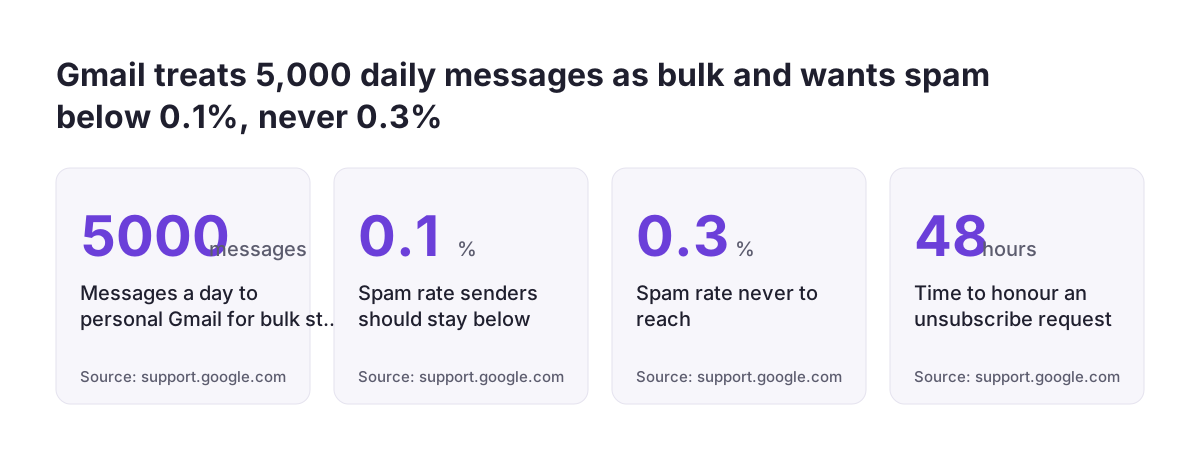
Stricter rules apply to bulk senders. Google defines a bulk sender as anyone who sends close to 5,000 messages or more to personal Gmail accounts within 24 hours. Google counts all messages from the same primary domain, subdomains included. The classification is permanent: bulk sender status has no expiry date, even if your volume drops later.
According to Gmail's email sender guidelines, bulk senders must meet these requirements:
- set up both SPF and DKIM for the sending domain
- publish a DMARC record, where a policy of none is enough
- align the From domain with SPF or DKIM
- support one-click unsubscribe on marketing mail and show a clearly visible unsubscribe link in the body
- keep the spam rate reported in Postmaster Tools below 0.3%, and ideally below 0.10%
Enforcement is getting firmer. Google's sender guidelines FAQ says that from November 2025 Gmail is ramping up enforcement on non-compliant traffic, including temporary and permanent rejections. Other large mailbox providers publish their own sender rules. Read those directly for the providers your audience uses, because this post only relies on Google's published requirements.
SPF, DKIM and DMARC: what each DNS record proves
SPF, DKIM and DMARC are three DNS records, and each proves something different to the receiving server. Zoho's help centre defines them as follows. SPF (Sender Policy Framework) helps receiving servers identify legitimate senders for your domain. DKIM (DomainKeys Identified Mail) uses public key cryptography to show the message was not modified in transit. DMARC (Domain-based Message Authentication Reporting and Conformance) uses SPF and DKIM to validate mail and tells receivers what to do when validation fails.
| Record | What it proves | Where the value comes from | Gmail rule for bulk senders |
|---|---|---|---|
| SPF | The sending server may send for your domain | Copied from Domain Authentication in Zoho Campaigns | Required |
| DKIM | The message is unchanged and signed for a domain | Copied from Domain Authentication in Zoho Campaigns | Required; key of 1024 bits or longer, 2048 recommended |
| DMARC | Your policy for mail that fails SPF and DKIM | Written and published by you as a TXT record | Required; policy none is enough |
DMARC offers three policies, according to Zoho's DMARC article. With p=none, the receiver accepts unauthenticated mail without taking action. With p=quarantine, it stores the mail in a quarantine folder only server administrators can see. With p=reject, it rejects the mail.
A DMARC record can also name a rua address, which receives consolidated reports on SPF and DKIM results. Those reports show you which systems send mail in your domain's name. Zoho notes that SPF and DKIM are mandatory before DMARC can work, and that mail sent without SPF and DKIM may bounce.
Domain alignment: matching your From address to SPF or DKIM
Domain alignment means the domain in your From address matches the domain that SPF or DKIM checked. Passing SPF or DKIM is not enough on its own. Zoho's DMARC article states that an email passes DMARC only if it passes SPF authentication and alignment, or DKIM authentication and alignment.
The two kinds of alignment check different fields:
- SPF alignment: the From address and the return-path address must match.
- DKIM alignment: the From address and the d tag of the DKIM signature must match.
For Zoho Campaigns this has a practical consequence. Once the DKIM record from your account is published on your domain, DKIM alignment can pass. That alone satisfies DMARC and Gmail's current rule, which requires both SPF and DKIM to be set up but only one of them to be aligned. SPF alignment needs a return-path on your own domain as well. Check your Zoho Campaigns account for a custom return path setting and use it if it is offered.
Aligning both is worth planning for. Google's FAQ says DMARC alignment with both SPF and DKIM is likely to become a sender requirement eventually.
Alignment also rules out sending from a free-mail address. Google warns that Gmail will begin using a DMARC quarantine policy. It also warns that impersonating Gmail From headers might affect delivery. A campaign sent from a @gmail.com address through any marketing platform is exactly that. Always send from an address on a domain you control.
Consent for email marketing under EU law: the ePrivacy Directive and GDPR
EU law requires prior consent before you send marketing email to individuals, with one narrow exception for existing customers. For company addresses, each member state sets its own rule. The rule comes from the ePrivacy Directive 2002/58/EC, adopted on 12 July 2002 and amended in 2006 and 2009. The directive allows electronic mail for direct marketing only to subscribers or users who have given their prior consent.
The exception is often called the soft opt-in. A business that obtained a customer's email address in the context of a sale may market its own similar products or services to that address. The customer must be given a clear and distinct opportunity to object, free of charge and easily. That opportunity is offered when the address is collected and again in every message.
The directive also bans certain practices in every marketing email, including these two:
- hiding who the sender is
- leaving out a valid address where the recipient can ask for the messages to stop
A directive does not apply directly. Member states had to bring it into national law before 31 October 2003, and each sets its own penalties. Those penalties must be effective, proportionate and dissuasive. The consolidated text on EUR-Lex is a documentation tool with no legal effect. The rules that apply to a sender are in each member state's national law.
So check the law of the country where your recipients are, not only your own. GDPR applies alongside the directive whenever you process personal data for marketing. This post is not legal advice. Ask a lawyer to look at how you collect consent, and at whether business and consumer addresses are treated differently in the countries you mail.
Setting up Zoho Campaigns step by step: sender, domain and DMARC
Zoho Campaigns authenticates a sender domain in four steps: add the sender, copy the SPF and DKIM records, add them to DNS, and verify. Take the example Zoho itself uses. Zylker sends newsletters from patricia.b@zylker.com, and only the organisation's admin can open the domain authentication settings.
- Add the sender. In Settings, select Manage Senders under Deliverability and click Add Sender. You can enter up to 5 sender addresses at once.
- Verify the address. Open the verification email from Zoho Campaigns and click the Verify your email address button. The address then appears under the Sender Address tab, and zylker.com appears under the Domain Authentication tab.
- Copy the records. Select Domain Authentication under Deliverability and click Setup on the zylker.com row. Copy the SPF and DKIM TXT records.
- Publish them in DNS. Add both TXT records at zylker.com's DNS provider.
- Verify the domain back in Zoho Campaigns.
- Publish DMARC. Add a TXT record with the policy
p=noneand aruaaddress for reports. Zoho notes it may take 24 hours to take effect. - Test. Send a campaign to a personal Gmail address and open the message headers. Confirm that SPF, DKIM and DMARC pass, and look for the List-Unsubscribe headers that Gmail's one-click rule (RFC 8058) expects.
Step 7 matters because the Zoho help pages used for this guide do not confirm the one-click unsubscribe header. Gmail says mailto and plain URL unsubscribe links do not meet its one-click requirement. Only the header check tells you what your account actually sends.
Two cautions apply. Zoho says the new version of Zoho Campaigns is currently available only to new users, so menu names in your account may differ from these help articles. Zoho also advises you to warm up a new sending domain gradually, starting with small volumes.
Syncing Zoho CRM contacts into Campaigns without the unconsented ones
The CRM sync decides who receives your campaigns, so it is where consent problems usually enter Zoho Campaigns. Contacts can arrive by CSV import, by copy and paste, or by syncing from Zoho CRM, Google Contacts or Shopify. A sync that pulls every CRM contact also pulls people who never agreed to marketing.
Build the sync around a recorded basis instead. In Zoho CRM, keep a field or view that holds only contacts with consent or a documented soft opt-in. Sync that view, not the whole contacts module. Record where each consent came from, so you can answer a question about it later.
A broad sync also costs money. Zoho's pricing page says that if syncs push your contact count past what you bought, Zoho upgrades the account automatically. The difference is charged on the next billing date.
When Svennis is asked why Campaigns mail lands in spam, we check the CRM sync filter and the Domain Authentication tab before anyone touches the copy. We most often find a whole-module sync with no consent filter, or a domain that was added but never verified.
For new sign-ups, Zoho recommends double opt-in. With double opt-in, the subscriber confirms the address from an email before being added to the list. Zoho advises it to keep invalid addresses out of your lists. How campaign responses flow back into deals and the pipeline is a separate subject. Our post on Zoho Campaigns with CRM and pipeline updates covers that setup.
List hygiene in Zoho Campaigns: bounces, unsubscribes and inactive contacts
List hygiene is the routine removal of addresses that bounce, complain or no longer engage. Zoho Campaigns handles part of it automatically, and the rest is your job. A bounce is an email that cannot be delivered, usually with an error message from the receiving server.
Zoho's bounce article describes two kinds, handled differently:
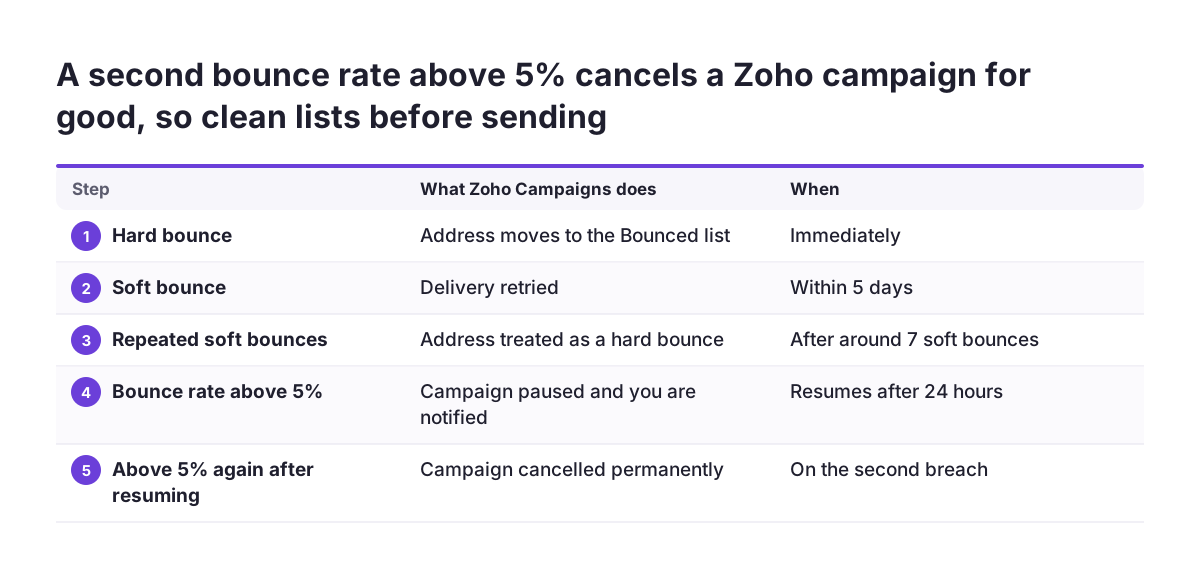
- Hard bounce: a permanent failure, such as an address or domain that does not exist. The address generally goes to the Bounced list immediately.
- Soft bounce: a temporary failure, such as a full mailbox or an unavailable server. Zoho retries within the next five days. An address that soft bounces around seven times is treated as a hard bounce.
Zoho Campaigns protects your reputation with a hard stop. If a campaign's bounce rate exceeds 5%, Zoho pauses it, notifies you and resumes after 24 hours. If the rate exceeds 5% again, Zoho cancels the campaign permanently. A rising hard bounce rate damages your domain reputation and can get your address blacklisted.
The remaining hygiene tasks are yours:
- never import purchased lists
- remove hard bounces immediately
- remove inactive subscribers periodically
- honour unsubscribes within 48 hours, as Google recommends
Keep the unsubscribe link easy to find. Zoho notes that a hard-to-find opt-out frustrates recipients and can increase spam complaints. Zoho's Content Compliance and Manual Moderation teams also review campaigns, so a list with problems can be stopped before it reaches recipients.
The deliverability numbers to check every month
Five numbers tell you whether your Zoho Campaigns setup is healthy. Check them once a month, and after any large import or new CRM sync. The table gives each threshold and its source.
| Metric | Threshold | Source | What to do if it slips |
|---|---|---|---|
| Spam rate in Postmaster Tools | Below 0.10%, never 0.3% or higher | Gmail sender guidelines | Review consent and sync filters; send only to engaged contacts |
| Campaign bounce rate | Pause above 5% | Zoho Campaigns bounce article | Clean the source list before resending |
| Unsubscribe processing | Within 48 hours | Gmail sender FAQ | Check that CRM sync does not re-add unsubscribers |
| Open rate | 20-30% for small businesses | Zoho Campaigns product page | Read it as a trend only |
| Click rate | 2-5% for small businesses | Zoho Campaigns product page | Test subject lines and content |
The spam rate matters most. Google says bulk senders above 0.3% are ineligible for mitigation. Eligibility returns only after the rate stays below 0.3% for 7 consecutive days.
Treat open rates with care. Zoho's benchmarks vary by industry, and Google says it does not track open rates. Google also cannot verify open rates reported by third parties. A falling open rate is a signal worth investigating, not proof of spam placement.
Zoho Campaigns reporting can be integrated with Zoho Analytics, which lets you chart these numbers alongside CRM data. Our Zoho Analytics implementation page explains how we build such dashboards.
What this means for a company sending across the EU
A company mailing across the EU faces two sets of rules at once: mailbox provider requirements and national consent law. The mailbox rules follow the recipient's address. The consent law follows the recipient's country.
Gmail's sender guidelines apply only to personal Gmail accounts, meaning addresses ending in @gmail.com or @googlemail.com. They do not apply to mail sent to Google Workspace accounts. A B2B list of company domains may therefore stay under the bulk threshold. Business lists often contain personal addresses too, though, and the count covers your whole primary domain. Set up full authentication anyway, because bulk status never expires once reached.
Volume also shapes your infrastructure. Most senders share IP addresses, and on a shared IP every sender's behaviour affects the reputation of all the others. Zoho suggests a dedicated IP if you send more than 100,000 emails a month or 50,000 a week. It is an add-on on the Standard and Professional plans, bought separately and yearly.
Zoho Campaigns plans are priced by contact tier, according to the Zoho Campaigns pricing page:
- Forever Free: up to 2,000 contacts, 6,000 emails a month, 5 users
- Standard: from 500 contacts up to 100,000, unlimited emails, 10 users
- Professional: up to 500,000 contacts, unlimited emails, 20 users
Annual billing carries a 25% discount, and Zoho Campaigns has no daily sending limit. Read the current price for your tier and currency on the pricing page itself.
Next steps: a checklist before your next Zoho Campaigns send
Work through this checklist before your next campaign, in this order:
- Confirm every sender address is on your own domain and verified under Manage Senders.
- Check that the domain shows as authenticated under Domain Authentication, with SPF and DKIM published.
- Publish a DMARC record with p=none and a rua address, then read the reports for a few weeks.
- Send a test to a personal Gmail address and check the headers for SPF, DKIM, DMARC and List-Unsubscribe.
- Narrow your Zoho CRM sync to contacts with recorded consent or a documented soft opt-in.
- Have a lawyer review your consent wording for the countries you mail.
- Put the five monthly numbers in a recurring calendar reminder.
If you are still evaluating, Zoho offers a 14-day free trial without a credit card. Paid plans include unlimited free onboarding sessions for up to 60 days. Use that window to finish steps 1 to 5 before your first large send.
If you later need lead nurturing across several touchpoints, our Zoho Marketing Automation page explains where it goes beyond campaigns. For help with the authentication, sync and hygiene setup described here, see our Zoho Campaigns setup service.
Sources
- Zoho Campaigns: Response actions for email campaigns (email marketing guide)
- Gmail Help: Email sender guidelines
- Gmail Help: Email sender guidelines FAQ
- Zoho Campaigns: DMARC
- Zoho Campaigns: Steps to authenticate your sender domain
- EUR-Lex: Directive 2002/58/EC, consolidated text
- Zoho Campaigns: Bounces
- Zoho Campaigns: Email Marketing Pricing & Plans
- Zoho Campaigns: Email marketing software